How to Install an Android Head Unit: Step-by-Step Guide
This page contains affiliate links. We may earn a commission at no extra cost to you.
On this page
Fitting an Android head unit is one of the most satisfying upgrades you can do yourself. With the right adapter harness, no factory wires need to be cut, and the job takes an afternoon in most cars. It does involve working behind the dashboard near airbags and live electrics, so this guide puts the safety steps first and walks through the rest in the order a careful installer would do it. Always check a model-specific guide or video for your car as well, because trim removal varies a lot.
Before you start: parts and tools
Lay everything out and check it before taking the dash apart. You should have:
- The head unit with its 16-pin power harness, GPS antenna, microphone, USB leads and any camera cable.
- A harness adapter from your car's plug to the head unit, plus a CANbus decoder if your car needs one. Our CANbus decoders guide explains how to tell.
- A fascia or frame to fill the dash opening, and an antenna adapter if your car uses a non-standard plug.
- Tools: plastic trim tools, the right screwdrivers or sockets, radio removal keys if your car uses them, a multimeter, crimp connectors or solder and heat shrink, insulating tape and cable ties.
If your factory radio has a security code, find it and write it down now, in case you ever refit the original. Also check whether your car has any procedures after battery disconnection, such as resetting one-touch windows, a battery monitoring system or an alarm.
Step 1: Disconnect the battery
Switch off the ignition, remove the key (or move a keyless fob well away from the car) and disconnect the negative battery terminal. Tuck the cable away so it cannot spring back onto the post.
Airbag systems store energy and can stay live for a short time after the battery is disconnected. Wait at least the time your car's service information recommends, often several minutes, before working near the dash. Never unplug, probe or pierce yellow connectors or wiring, which usually belong to airbag circuits. If you see an airbag warning light afterwards, have the system checked by a professional.
Disconnecting the battery also protects the new unit and the car's modules from shorts while you handle bare connectors.
Step 2: Remove the trim and the old radio
- Prise off the trim around the radio with plastic tools, working slowly from an edge. Clips break easily when cold, so work in a warm place if you can.
- Undo the screws or bolts holding the radio or its frame. Some cars use spring clips released with radio keys instead.
- Pull the radio forward, supporting its weight, and photograph the back before unplugging anything.
- Unplug the power and speaker connectors, antenna and any extra plugs such as CD changer, USB or factory camera leads.
Keep screws and clips in a labelled tray. You will need them for the fascia.
Step 3: Prepare the wiring
Do the wiring on a bench or the passenger seat, not inside the dash. With a vehicle-specific adapter, this is mostly plugging connectors together:
- Plug the adapter harness into the head unit's 16-pin connector.
- Connect the CANbus box between the adapter and the car plug if your kit includes one.
- Join any loose wires the adapter leaves out, such as amplifier remote or reverse, with proper crimps or solder and heat shrink. Avoid twisted wires and tape on their own.
- Insulate every unused bare wire end separately.
The colour codes and the common 12 V pitfalls are covered in our car radio wiring harness guide. The usual mistake is swapping constant 12 V (yellow) and switched 12 V (red), which makes the unit lose its settings or drain the battery.
Most units have a parking brake wire that unlocks video playback and some settings when the handbrake is on. Connect it as intended. Do not ground it permanently to defeat the safety lockout; watching video while driving is dangerous and illegal in many places.
Step 4: Route the GPS antenna, microphone and USB
- GPS antenna: it needs a view of the sky through glass. The top of the dash, under the dashboard top near the windscreen, often works. Heated or metallic-coated windscreens can block the signal.
- Microphone: mount it near the driver's head, often on the headliner or steering column cover. If you route the cable along an A-pillar, keep it behind or beside the curtain airbag, never across it, and refit pillar trims exactly as they were.
- USB: wired CarPlay and Android Auto need a reliable data cable. Run an extension to a glovebox, centre console or blanking plate so the phone cable is not hanging from the back of the unit.
- Reverse camera: if you are fitting one, run its video cable now while the dash is open, and take reverse power from the reversing light or the decoder.
Secure every cable with ties so nothing can rattle or catch on pedals, the steering column or moving parts.
Step 5: Test before you refit the dash
Connect everything at the dash opening without fixing the unit in place, then reconnect the battery and test properly. It is far easier to fix a problem now than after the trim is back on.
- Switch on the ignition. The unit should power up; switch off and it should power down.
- Set a radio station, turn the car off and on, and check the setting is remembered.
- Use the balance and fader to confirm every speaker works and is in the right position.
- Test the FM antenna, Bluetooth calling and the microphone with a real call.
- Connect your phone for CarPlay or Android Auto.
- Learn or select the steering-wheel controls and check every button.
- Select reverse with the engine off and the parking brake on, and check the camera switches.
- Turn on the headlights and confirm the screen dims if you set that up.
Disconnect the battery again before fixing the unit in place if you need to move any wiring.
Step 6: Mount the unit and refit the trim
Fit the head unit into its frame or brackets, push surplus cable into empty space behind it without crushing it, and make sure the CANbus box is secured so it cannot rattle. Bolt the frame in, refit the trim panels and check every clip has seated. Reconnect the battery and run through the quick checks once more.
After installation
- Go through the settings: time zone, steering-wheel learning, CANbus type, reversing camera guidelines and audio presets.
- Check for firmware updates only from the seller or the manufacturer, and follow their instructions exactly. The wrong firmware can leave a unit unusable.
- Drive for a few days before throwing away packaging, in case you need to return anything.
- If the battery seems to drain overnight, recheck the constant and switched 12 V wiring.
Parts like these usually ship from marketplace sellers within one to three weeks, so order the harness, adapters and decoder at the same time as the head unit. If you have not picked a unit yet, our Android car stereo buying guide covers what to look for. If anything about the airbag area or your car's electrics feels uncertain, a professional installer is money well spent.
Parts for the job
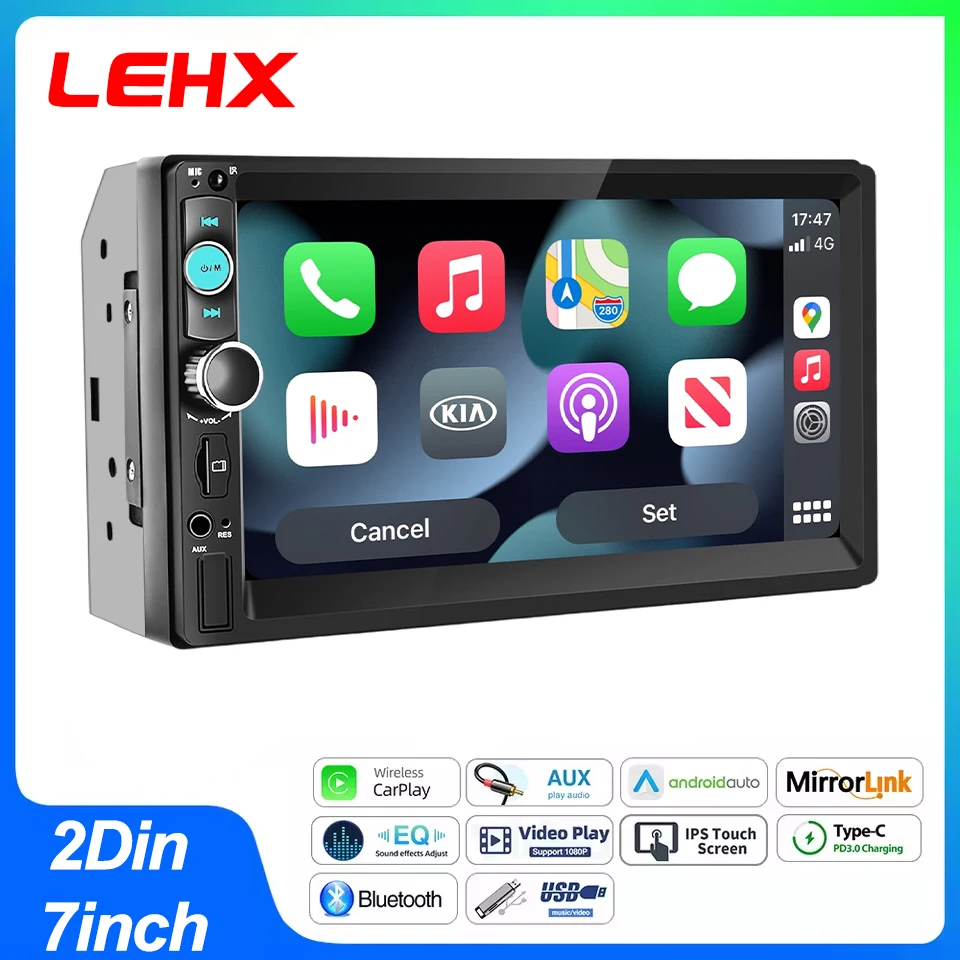
LEHX 7-inch 2-DIN Android head unit
Standard 2-DIN openingsA universal 7-inch 2-DIN unit with CarPlay, Android Auto, Bluetooth and FM, as listed. It fits cars with a standard double-DIN opening and uses the common 16-pin power harness, so it pairs with the adapters below. Measure your dash depth and confirm the frame suits your car before ordering.
Listing: LEHX 7 Inch 2Din Android Auto Carplay Car Radio Multimedia Player FM AUX BT MirrorLink Un…
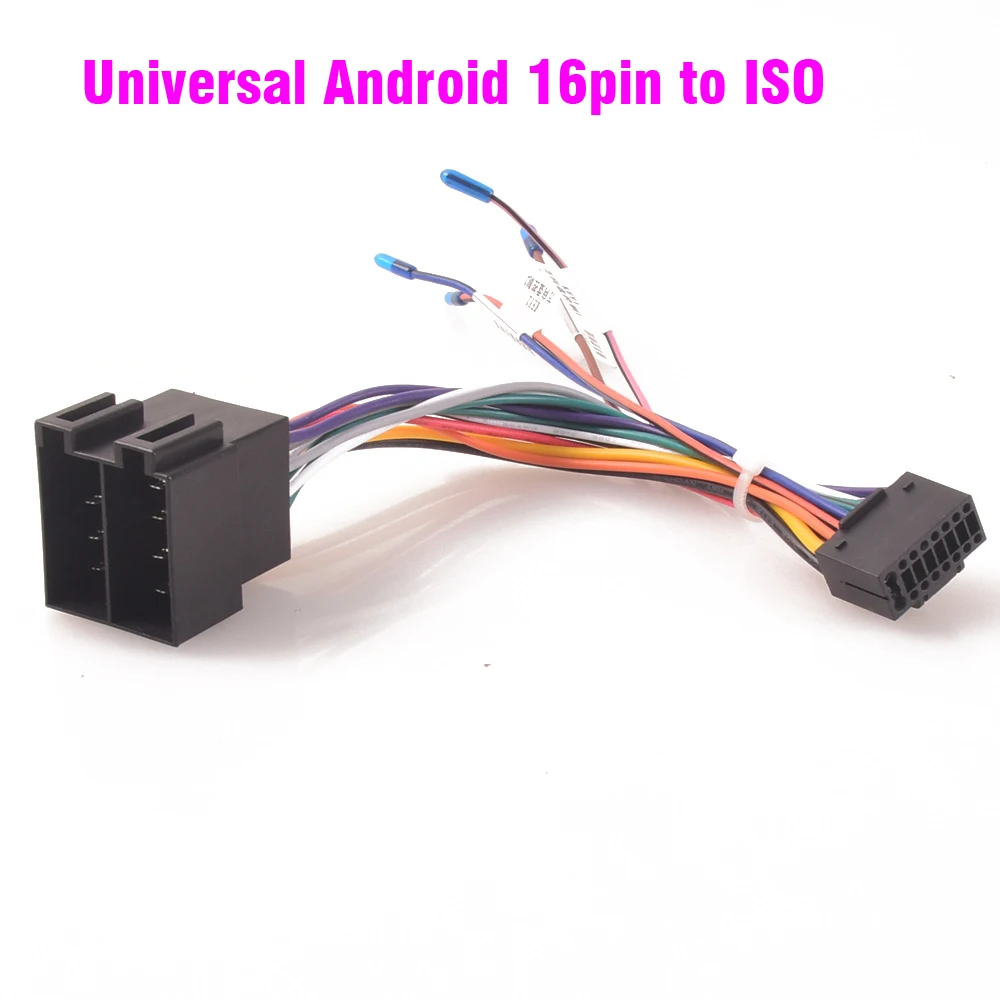
ISO to Android 16-pin universal harness
Cars with ISO plugsConverts a standard ISO radio connector to the 16-pin plug on most Android head units, so you can fit the unit without cutting factory wires. Listed for many European brands including Mercedes, Opel, Fiat, Renault and Peugeot. Check the constant and switched 12 V pins with a meter during the bench test.
Listing: Car Radio Stereo Wiring Harness ISO to Android Universal Accessory Wire for Mercedes benz…
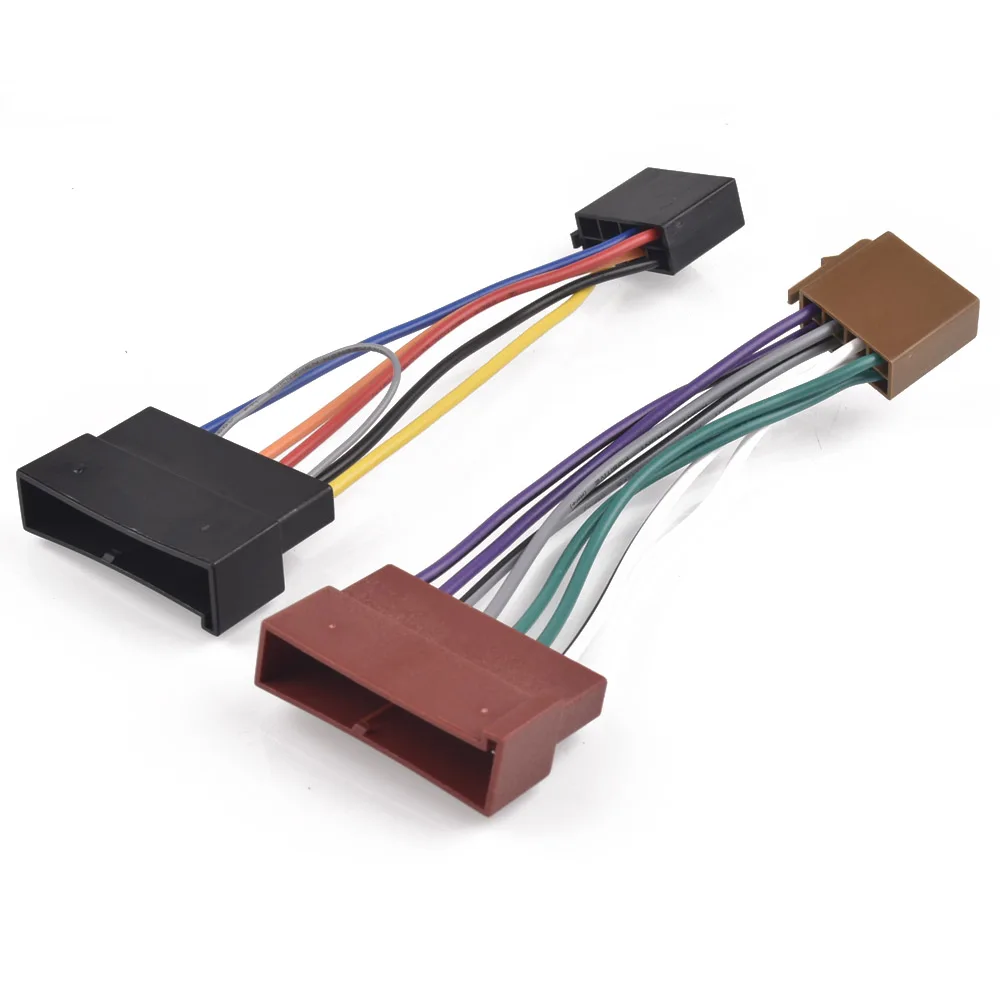
Ford to ISO adapter cable
Older Ford modelsAn adapter from the older Ford radio plug to standard ISO connectors, listed for models such as the Ka Mk1, Focus, Escort and Transit. Use it together with an ISO to 16-pin harness for an Android unit. Confirm your Ford uses this plug style by comparing it with photos of your factory connector.
Listing: Car Radio ISO Adapter Cable Plug Harness Connector for ford KA MK1 Focus Escort MK5 MK4 T…

Renault to ISO harness
Megane III and ScenicAn ISO wiring adapter listed for the Renault Fluence, Megane III, Scenic and Grand Scenic. It connects the car's radio plug to standard ISO connectors without cutting wires. Some Renaults also need a steering-wheel control interface, so check what your trim level needs before you start.
Listing: Car Stereo Audio ISO Wiring Harness Cable For Renault Fluence Megane III Scenic Grand Sce…
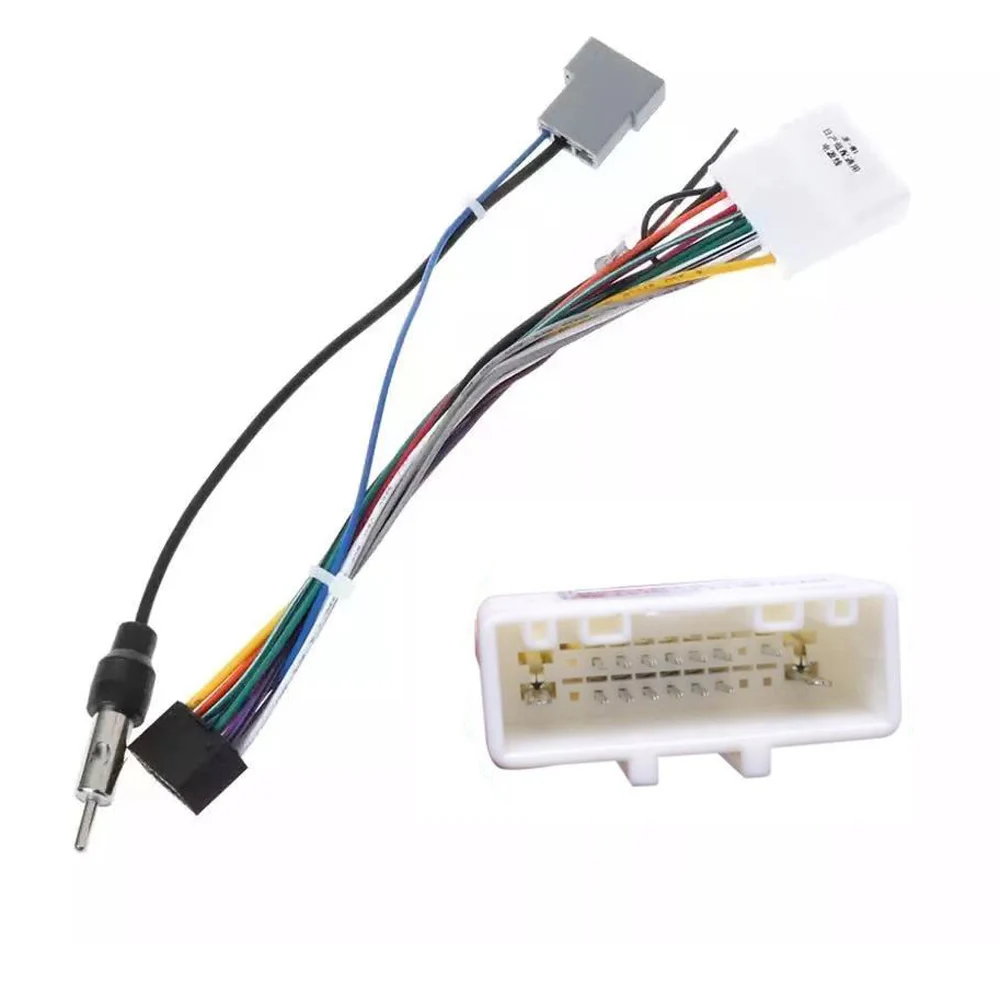
Nissan universal female harness
Nissan installsA harness adapter listed for Nissan models including the Qashqai, X-Trail, Pathfinder and Sentra. It plugs into the factory connector and gives you labelled wires to join to the head unit's harness. Crimp or solder every joint and insulate unused wires individually.
Listing: Universal Female Wiring Harness Car Radio Adaptor Connector Wire Plug for Nissan Qashqai …

16-pin harness with CANbus box for VW
VW group carsA plug-and-play 16-pin harness with an integrated CANbus box for VW Golf Mk4 and Mk5, Passat B5 to B7 and SEAT Ibiza, as listed. It provides the ignition, lights and steering-wheel signals these cars send over the data bus. Select the matching Canbus type in your head unit settings after fitting.
Listing: Car 16pin Radio Wiring Harness Canbus Box For VW Golf mk4 mk5 Passat B5 B6 B7 SEAT Ibiza …